Search This Blog

Showing posts with label Business Intelligence. Show all posts

Saturday, October 8, 2011

OBIEE 11G: Installation failed at Creating ASInstance stage on linux

While installing OBIEE 11g on linux installation failed at creating AsInstance stage as shown in the below email


Reason: /etc/hosts file not updated properly, that is why IP ADDRESS / HOST not resolve.

Solution: update the /etc/hosts file as shown below:
[root@orapddg OPatch]# cat /etc/hosts
# Do not remove the following line, or various programs
# that require network functionality will fail.
192.168.100.11  fakorapddg.dummy.local     orapddg
127.0.0.1       localhost.localdomain.local     localhost


Thursday, September 29, 2011

OBIEE 11G: How to configure Mail Setup

OBIEE 11G: How to configure Mail Setup

Step:
Login to oracle business enterprise manager (em)
http://URL:PORT/em

then go to business intelligence section under farm_bifoundation_domain at left hand side (click on it)
you fill see "coreapplication" (click on it)
then go to deployment tab
then click on mail tab.

After that login to oracle business intelligence publisher
go to administration (tab) at top right hand side (click on it)
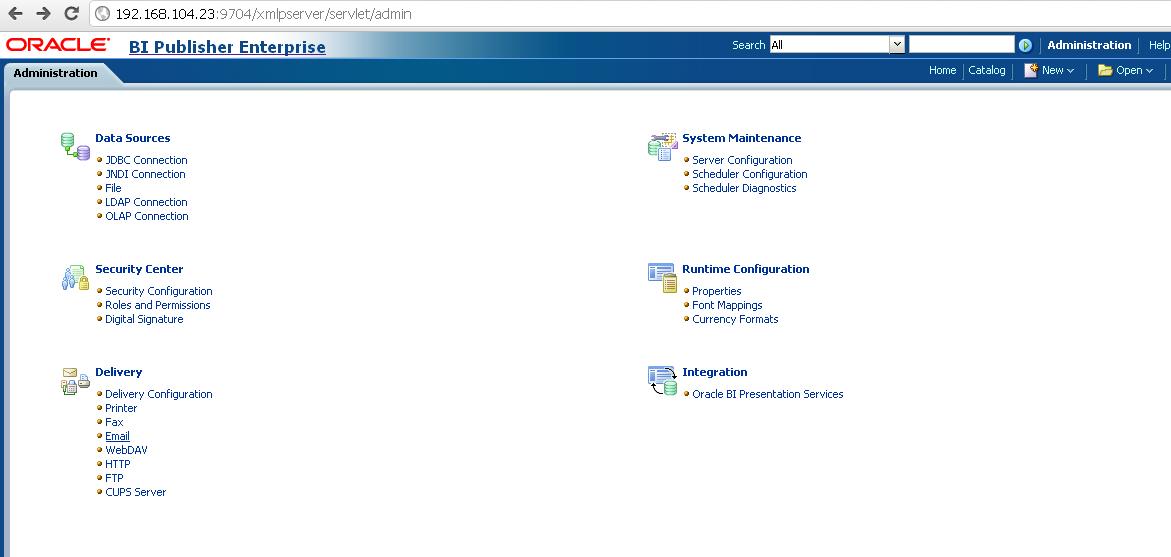
then under "delivery" section click on EMAIL button

give the smtp hostname and ip address and port.

after that you will receive the following email if you scheduled report to sent.

OBIEE 11G: Integration with iPhone

OBIEE 11G: Integration with iPhone
We can access and use OBIEE 11g from iPhone application., you just need to follow the following docs

and for reference:


nQSError: 61013 Can not save changes to the repository

nQSError: 61013 Can not save changes to the repository


It is might be repository is on offline mode and BI server is not down.

Solution:
Stop BI services
then save changes.


Tuesday, September 20, 2011

Sunday, September 18, 2011

Installation of OBIEE 10.1.3.4.2 ON WINXP 32BIT

I am using the following document.

Step:
1. Requirement

NOTE: download JDK 5.0 from here ,after downloading complete then install JDK.

Step:


ONCE YOU FINISHED INSTALLATION THEN USE THE BELOW LINK FOR REFERENCE TO LOGIN ORACLE BI.


Default Username and password of Oracle BI Publisher 10.1.3.4.2

Today i installed Oracle Business Intelligence 10.1.3.4.2 successfully on windows platform.
After the installation when i trying to login with Oracle BI publisher and Oracle BI Interactive Dashboard (Analytic) then could able to login because i don't know what is the password and username.

The Default Username: Administrator
The Default Password: Administrator

NOTE: Password are case sensitive.


There is a one more component called ENTERPRISE MANAGER

the default username is oc4jadmin
and the password : user defined during the installation.


Installation of JAVA JDK 5.0

You can download JDK 5.0 from here

Step: